Oryon MCP tutorial
A short end-to-end walkthrough: let an AI agent explore a running Java application, rename a supplier record, check that the new name was really stored, and turn the result into an Oryon script.
The example uses the SwingSet demo, a data-bound Swing application that opens on a launcher, from which each example form can be reached. The first of them shows supplier records (a Supplier ID, a Name, a City and a Status), with a navigator to move from one record to the next. Any Swing or JavaFX application works the same way.
The scenario
Change the name of one supplier record, and prove the new value survived: navigate away, come back, and check the field again. Typing a value and reading it straight back proves nothing; only the round trip does.
Get the demo application
The SwingSet demo is published on Maven Central, so no credentials are needed:
curl -O https://repo1.maven.org/maven2/com/nqadmin/swingset/demo/swingset-demo/4.0.13/swingset-demo-4.0.13-jar-with-dependencies.jar
Start the application under test
Start the application with the Oryon agent attached, using the Swing module. Use the Java 21 from the prerequisites explicitly rather than whatever java your PATH resolves to, which may be outside the supported range:
On Windows:
C:/jdk21/bin/java.exe -javaagent:C:/oryon/agent/oryon-agent.jar=module:Swing,license:C:/oryon/license/oryon.license -jar swingset-demo-4.0.13-jar-with-dependencies.jar
On macOS and Linux:
/path/to/jdk21/bin/java \
  -javaagent:agent/oryon-agent.jar=module:Swing,license:license/oryon.license \
  -jar swingset-demo-4.0.13-jar-with-dependencies.jar
The console then reports the agent listening:
Oryon: INFO [main] Agent Oryon-Agent: Using module 'SwingModule'
Oryon: INFO [Thread-0] ConnectionListener Starting server socket on port 12121
The MCP server attaches to it on startup, so there is nothing else to launch.
Look at the screen
The application opens on its launcher. Open the first example, and ask your AI agent for a picture of the result:
Click Example1, take a screenshot and save it to /tmp/sut.png
To find the button, the agent snapshots the launcher, then clicks it with oryon_execute_command. oryon_screenshot then returns the application as an image:
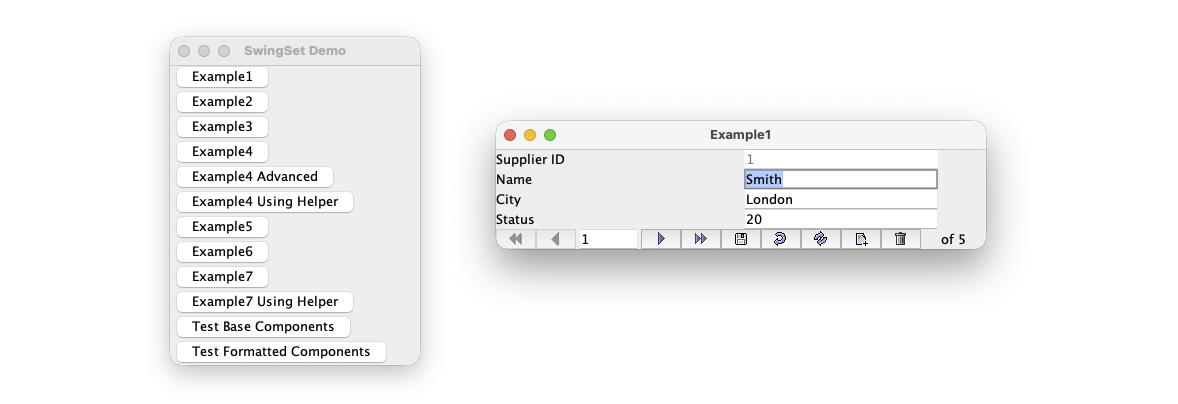
That is what you see. What the agent works from is text, so ask for that too:
Take a snapshot.
oryon_snapshot returns the visible UI as a tree of elements, covering both windows, shortened here:
[e1] Root
 [e2] JButton text="Example1"
 …
 [e14] JLabel text="Supplier ID"
 [e15] JLabel text="Name"
 [e16] JLabel text="City"
 [e17] JLabel text="Status"
 [e18] SSTextField text="1"
 [e19] SSTextField text="Smith"
 [e20] SSTextField text="London"
 [e21] SSTextField text="20"
 [e22] SSDataNavigator
  [e23] JButton tooltip="Navigate to First Record"
  [e24] JButton tooltip="Navigate to Previous Record"
  [e25] JTextField text="1"
  [e26] JButton tooltip="Navigate to Next Record"
  [e27] JButton tooltip="Navigate to Last Record"
  [e28] JButton tooltip="Commit/Save Current Record"
  …
  [e33] JLabel text="of 5"
Every element carries a [ref], and those refs are how the other tools address it. They belong to this snapshot only: after anything changes on screen, take a new one.
Note how the form is described: the labels are separate JLabel elements, listed before the fields, and the fields themselves carry only their value. Nothing in the snapshot ties [e19] to the Name label: it is the second SSTextField, matching the second label. The agent infers the pairing from that order, which is worth knowing when a field turns out to hold an unexpected value.
The navigator is the exception: every control in it carries a tooltip, so each one is identified by what it does rather than by where it sits.
Change a value
The form opens on the first record. Move to the second one, so that the check in the next step has a record to come back to:
Move to the next record, then set the Name field to "Acme Industrial Supplies" and commit.
The agent clicks Navigate to Next Record, bringing up record 2 (Jones, Paris). It then calls oryon_list_commands on the Name field to see what it supports (setText, clear, getText, …), runs setText through oryon_execute_command, and finally clicks Commit/Save Current Record the same way.
Both buttons are addressed by what their tooltip says rather than by where they sit in the tree, which is what keeps the agent working when the layout shifts: it re-reads the tooltips from each new snapshot.
Typing into the Name field changes only what is on screen. The Save button is what writes the record to the demo’s database; without it, moving to another record throws the change away.
Check that it was really stored
Move to the first record, come back to this one, and tell me what the Name field shows.
The agent navigates away and back, takes a fresh snapshot, and reads the field. It should now show Acme Industrial Supplies and no longer Jones, which means the new name reached the demo’s database rather than only the field on screen.
Make sure the answer comes from a snapshot taken after the navigation. oryon_execute_command returns a fresh one whenever the UI changes, but a value read from the earlier snapshot would just be the text you typed.
Turn it into a script
So far the agent drove the application directly. To keep the scenario, ask for a script:
Give me an Oryon script that does the same thing.
For each element it used, the agent calls oryon_get_xpath to resolve the ref into an XPath, then assembles the steps into Groovy. The exact script varies with the AI agent you use:
def nameField = "//SSTextField[2]"
def commit    = "//JButton[@tooltip='Commit/Save Current Record']"
def first     = "//JButton[@tooltip='Navigate to First Record']"
def next      = "//JButton[@tooltip='Navigate to Next Record']"

gui.setText(nameField, input.getString("supplierName"))
gui.click(commit)

// round trip: leave the record and come back before reading
gui.click(first)
gui.click(next)

output.add("name", gui.getText(nameField))
Nothing in the script declares gui, input or output: Oryon injects them, exactly as it does for a script run from the IDE. See Core API for what each one provides.
Finally oryon_run_script runs it against the same application and reports its output, so the script is validated before it is saved. Give it a different name this time, so that the check can fail: the record still holds Acme Industrial Supplies from the steps above, and a script that changed nothing would pass anyway.
Run that script with supplierName set to "Global Parts SA", and show me the output.
The name is passed as input rather than hardcoded, so the script is already shaped like a Keyword: the same script, run with different business data. The output should report Global Parts SA.
From here the script is an ordinary Oryon script: open it in the Oryon IDE, or turn it into a Keyword with the Step plugin.
What to remember
- Snapshot before you act. Refs are snapshot-scoped, and a stale ref fails rather than acting on the wrong element.
- Prefer text and tooltips to positions. The snapshot exposes both, and an agent that addresses a control by what it says keeps working when the layout shifts. Check any locator you intend to keep: a predicate is only as stable as the attribute it is built on, and a field’s current value is not a stable attribute.
- Make every check able to fail. Reading back a field you just typed into is not a test; navigating away and returning is.